
Stamps
A stamp is a piece of a chart kept to place again: a motif, a corner of a border, a word you have lettered. There are three kinds, and the first two need no account:
| Kind | Kept | Added with |
|---|---|---|
| Temporary | Until you close its chart or reload the page | Add temporary stamp |
| Project | With its chart, in the chart's saved file, autosave and account save. Exports don't carry it. | Add project stamp |
| Account | In your account, for any chart. You need to be logged in. See Saving and your account. | Save as stamp |
Keeping a stamp
- Select the piece with Select, Lasso or the Magic wand. See Selecting and moving.
- In the Selection tab, press the button for the kind you want.
It is kept at once, and a note says so. The stamp keeps the piece's stitches, half stitches and threads.
Placing a stamp
The Stamps tab, on the right next to Layers, shows this chart's temporary stamps, then its project stamps, then your account's, pinned first and then the newest. Search them by tag, and press one to place it. With no stamps, the tab explains what they are.
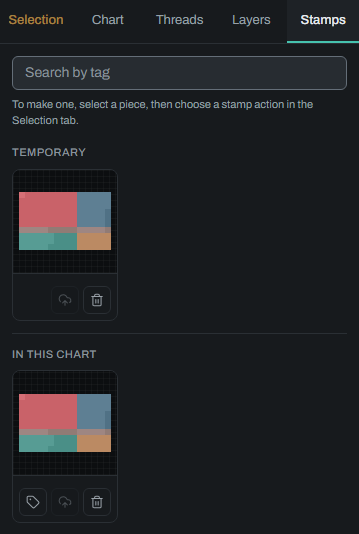
The stamp stays on your cursor, on the active layer. Click where you want it, and the next one is ready under the pointer, so you can place it as many times as you like. Each placing is one undo. A thread the chart does not have yet is added to its thread list when you first place the stamp.
To finish, right click, press Esc, or press Done in the top bar. The tool you had before comes back. Picking another tool also finishes.
While it is on your cursor:
- Flip and turn it with the buttons in the Selection tab.
- Move around the chart as usual, with Space held or by zooming. The stamp is still there afterwards.
- Mirror: with symmetry on, each placing also lays the stamp's mirror images, half stitches and backstitch included.
- Go over the edge: the stamp can hang off the chart, and only what is on the chart is placed.
The Stamps tab stays open, so pressing another stamp swaps the one on your cursor.
On a phone, the Stamps tab is in the sheet that Threads opens, and the sheet closes when you choose a stamp. Tap to place it where your finger lands, and press Done to finish.
Managing your stamps
Each stamp has its buttons, small icons at its foot, in the Stamps tab. Point at one to see its name. Account stamps have them on the Stamps page of your account too, which also shows each stamp's size and threads and the number you have.
| Button | Temporary | Project | Account | What it does |
|---|---|---|---|---|
| Pin (a pin) | Yes | Keeps it first in the list. | ||
| Edit tags (a tag) | Yes | Yes | Adds or takes off your own tags. | |
| Save to account (a cloud with an arrow) | Yes | Yes | Moves it to your account, with its tags, to use in any chart. Logged out, it is greyed. | |
| Delete… (a bin) | Yes | Yes | Yes | Asks first, as a deleted stamp can't be brought back. Charts it was placed in keep their stitches. |
Finding stamps by tag
Stamps have no names. They have tags, which are only for finding them, so they don't show on the stamps themselves.
Some tags are automatic, and say what the stamp holds: backstitch, halfstitch, cross-only, one-colour, two-colours, three-colours and many-colours. These stay on the stamp.
Your own tags can be anything, such as "rose" or "corner", and a stamp can have several. Press Edit tags (the tag) on a stamp, write one and press Enter. Tags you used on other stamps are suggested. Press Save tags when you are done.
In a search box, tags that would narrow the list appear as you type or when you click into the box. Press one to use it. A stamp is shown when every word you search for is part of one of its tags.
Limits
| Limit | Default |
|---|---|
| Stamps you can keep in your account | 100 |
| Size of one stamp | 4 MB |
| Your own tags on one stamp | 20 |
The stamps of a chart have no limit of their own, but they count towards the size of its saved file. When you have as many as your account allows, saving another says so: delete one first. A piece too large to keep is refused with a note to select a smaller one.